User Manual
1. Introduction
SmartOfficeNXT is a powerful no-code platform designed to help organizations rapidly build and deploy custom enterprise applications. Built on Microsoft 365, it empowers users regardless of technical background to create dynamic forms, configure automated workflows, and manage business processes efficiently. With its intuitive interface, seamless integration with Microsoft tools, and robust customization capabilities, SmartOfficeNXT transforms manual, fragmented operations into streamlined, digital experiences ensuring faster time-to-value, increased productivity, and scalable growth across any industry.
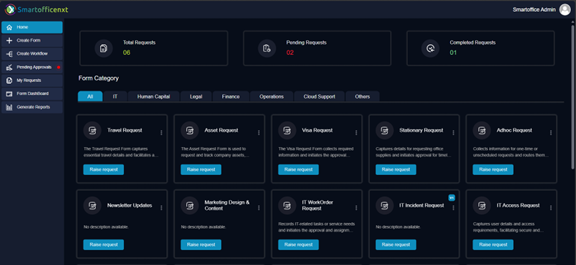
SmartOfficeNXT Dashboard – the central hub for forms, requests, approvals, and reports:
2. Purpose of the User Guide:
The purpose of this user guide is to help users understand and effectively use SmartOfficeNXT to build, manage, and automate custom business applications. It provides step-by-step instructions, feature overviews, and best practices to assist users of all levels from first-time creators to experienced administrators in navigating the platform, designing forms, configuring workflows, and leveraging integrations for maximum productivity.
3. Scope of the Product Covered:
This user guide covers the full functionality of SmartOfficeNXT, including:
- Form designing
- Workflow automation
- User access management
- SLA configuration
- Integration capabilities
- Reporting features
It is intended to guide users through the end-to-end process of building and managing custom applications within the platform.
The scope includes:
- Both user-level and administrator-level operations
- Comprehensive support for designing dynamic forms
- Configuring reusable workflows
- Enabling approvals
- Setting SLAs
- Generating reports across diverse business use cases
4. Document conventions (icons, notes, warnings)
| Icon | Description |
|---|---|
| ✅ Correct Icon | Denotes successful actions, confirmations, or approvals. |
| ⚠️ Warning Icon | Indicates potential issues or items needing attention. |
| ❌ Cross Icon | Indicates that an action cannot be performed. |
| * Instruction Icon | Provides helpful guidance or important informational notes. |
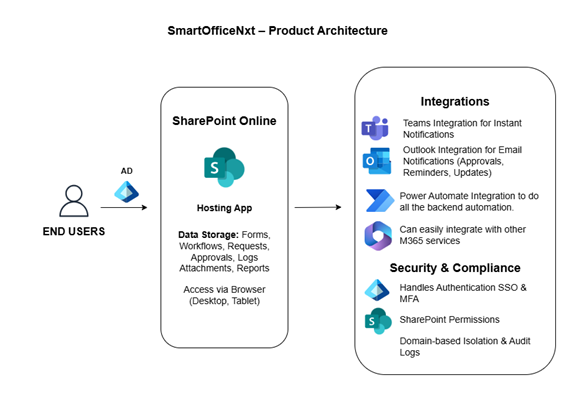
5. Product Architecture
6. User Workflows:
- End-User Workflow

- Admin Workflow
