9. Common Tasks & How-Tos
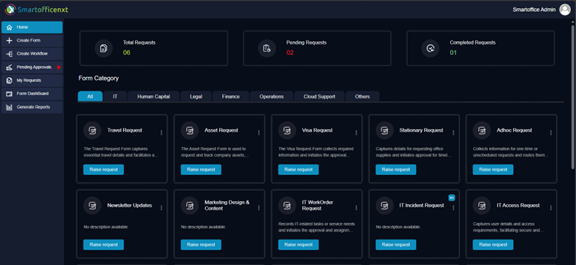
- How to initiate a new form request?
Click on the "Raise Request" button associated with the relevant form.
- How to check the status of a submitted request?
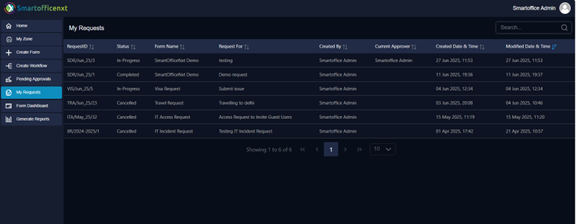
- Option 1: Open the submitted request page. The first accordion section displays the current status and the stage of the request in the workflow.
- Option 2: Navigate to Dashboard → My Requests. This section lists all requests submitted by the logged-in user, with a Status column showing the current state of each request.
- How to approve or reject a request?
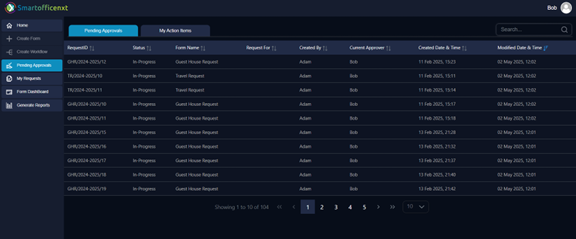
- Approvers will receive an email with a hyperlink to the request. Clicking it allows them to approve or reject directly.
- Alternatively, navigate to Dashboard → Pending Approvals, select the relevant request, and choose Approve or Reject.
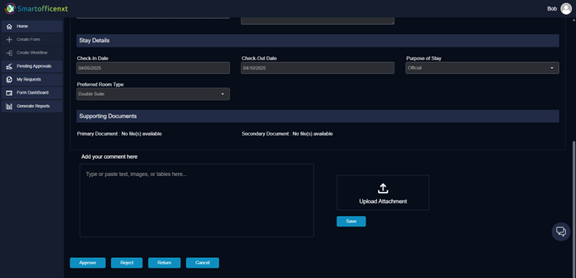
- How to add comments or attach files to a request?
If logged in as an approver, reviewer, or task performer, navigate to the request. A comment box with attachment option will be visible, where users can post comments and upload files.
- How are alerts or reminders sent?
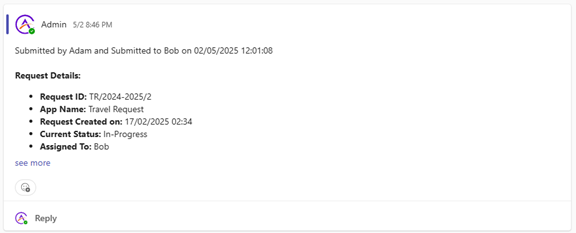
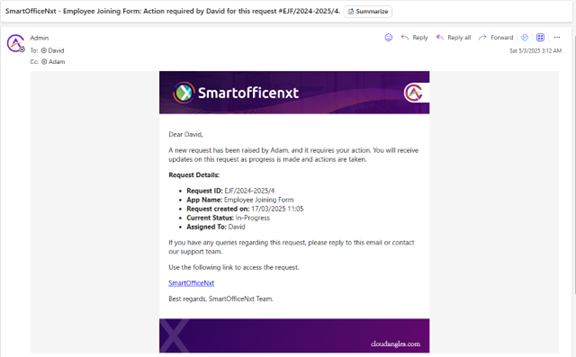
Users receive email and Microsoft Teams notifications for every action or update. Additionally, users configured under "Final Notification" will receive an alert once the request is completed.
Teams:
Email Notification:
- How to edit or cancel a submitted request?
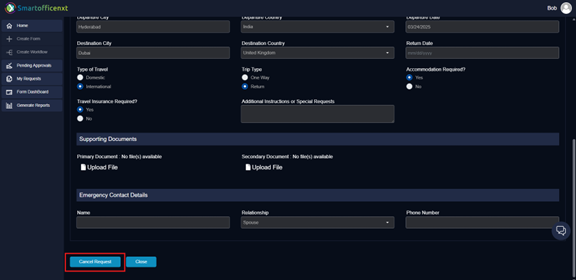
Once submitted, the request cannot be edited by the requester. However, the user still has the option to cancel the request.
- How to view previous submissions or download reports?
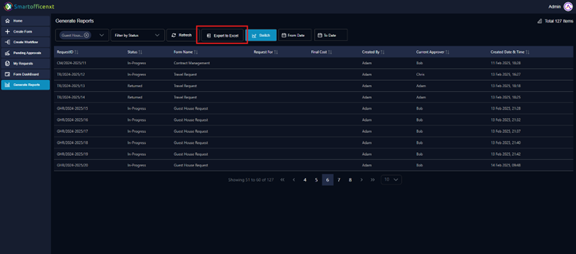
Each request includes an audit trail visible under the accordion section and comments log. Users can also go to the Generate Reports section to download filtered reports.
- How to filter data in reports or dashboards?
Use dropdowns, date pickers, or search options available on the page to refine and filter the displayed data.
- How to request system access or permissions?
If a user lacks access to SmartOfficeNXT, an "Access Denied" screen will appear with an option to send a request for access.
