5. Navigation & Interface Overview
This section guides you through the main interface components of SmartOfficeNXT for efficient navigation and task management.
5.1 Dashboard / Home Screen
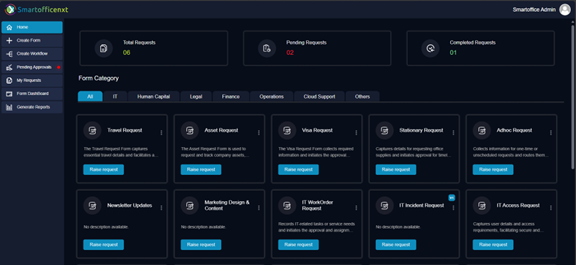
- The Dashboard provides a snapshot of your work with key statistics such as:
- Total Requests: The total number of requests you have raised.
- Pending Requests: Out of your total requests, how many are currently in a pending state awaiting action or approval.
- Completed Requests: Requests you have raised that are finalized or closed.
- Below the stats, you will see a list of all forms accessible to you based on your role and permissions for quick access.
- Under each form, the Raise Request button allows you to initiate a new request easily by opening the respective form.
5.2 Side Navigation Bar
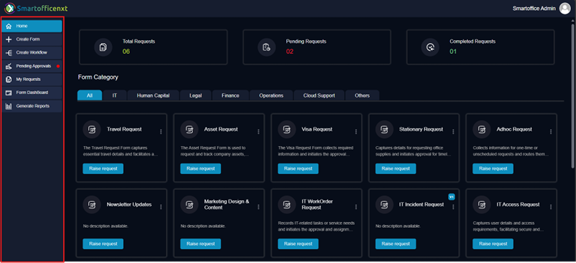
- The Side Navigation Bar, located on the left, provides access to the platform’s main features:
- My Requests: View all requests raised by you, including their status and details.
- Pending Approvals: Lists all requests or tasks that require your action or approval.
- Create Form: Design and build new custom forms.
- Create Workflows: Set up and manage automated workflows linked to your forms. You can create conditional workflows, configure SLAs for each form, and set final notifications to keep stakeholders informed.
- Generate Reports: View and export reports based on your form and workflow data.
- Form Dashboard: See an overview of all created forms and their current statuses.
5.3 Icons and their meanings:
| Icons | Meaning |
 | This indicates the organization we belong to. |
 | This represents the option to edit a user or group. |
 | This icon is used to configure dynamic status updates for the task performer role. |
 | This represents the option to create a new condition in the workflow logic. |
 | This represents the Internal Communication channel. |
 | In the Global Dashboard, this indicates the version of the form. |
 | This icon represents the workflow. |