4. Getting Started
Prerequisites:
To access and use SmartOfficeNXT, ensure the following requirement is met:
- Modern Web Browser:
A supported web browser (e.g., Microsoft Edge, Google Chrome, or Mozilla Firefox) is required to access the platform. No additional installations or plugins are needed.
- User Onboarding:
Users can register for the SmartOfficeNXT SaaS platform through the official website or be onboarded by an admin or authorized personnel. Access is then provisioned based on domain association and administrative configurations.
- Azure AD Identity:
For enterprise deployments or internal users, a valid Azure Active Directory (Azure AD) ID linked to the organization's domain is required to access the platform.
- Microsoft 365 Licenses:
Enterprise deployments require at least a Microsoft 365 license that includes:
- SharePoint (for data storage and site hosting)
- Power Automate (for workflow automation)
- Outlook (for email notifications)
- Microsoft Teams (for collaboration and approvals)
How to login:
Follow these steps to log in to SmartOfficeNXT:
1. Open the SharePoint Site URL
- Launch your preferred web browser (Microsoft Edge or Chrome recommended).
- Enter the SmartOfficeNXT URL provided by your organization. Example: https://yourcompany.sharepoint.com/sites/SmartOfficeNXT
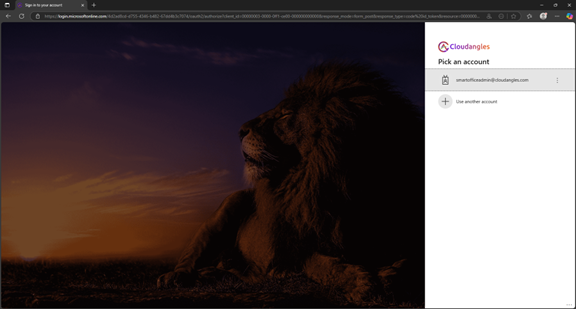
2. Sign in with Microsoft Account (Azure AD)
- If you're not already signed in, the Microsoft login page will appear.
- Enter your work email ID (e.g., user@yourcompany.com) and click Next.
📸 [Screenshot 1: Microsoft sign-in screen]
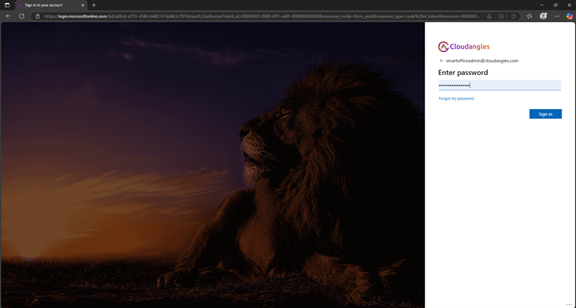
3. Enter Password
- Input your Microsoft 365 password and click Sign In.
- If multi-factor authentication (MFA) is enabled, follow the MFA steps.
📸 [Screenshot 2: Password input screen]
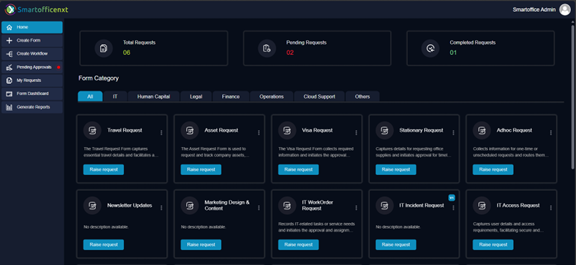
4. Access SmartOfficeNXT Home
- Once logged in, you’ll be redirected to the SmartOfficeNXT home page.
- From here, you can access your forms, workflows, dashboards, and reports.
📸 [Screenshot 3: SmartOfficeNXT homepage]
Setting up your profile / initial configurations
Post-Login Workflow Configuration and Role Assignment
After logging in, Admin users are responsible for creating forms and configuring workflows specific to each form. During this setup, the admin assigns predefined roles—such as Creator, Approver, Reviewer, and Task Performer—based on the form’s functional requirements. Logged-in users are expected to act according to the roles assigned to them at the form level.