7. Advanced Features
7.1 Timesheet
Description: The Timesheet feature allows users to log time spent on various requests or form-related tasks. It helps track user effort and ensures transparency.
Usage:
- Navigate to the Timesheet form to submit worksheets.
- Select a date and input task details, including time spent and linked request/form.
- Submit the entry to save your work log.
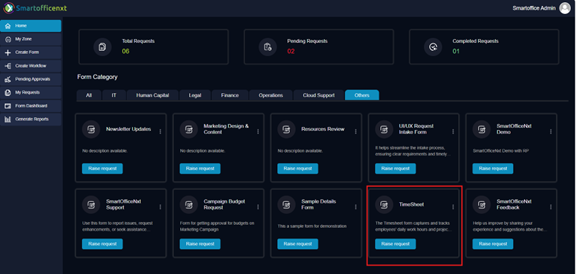
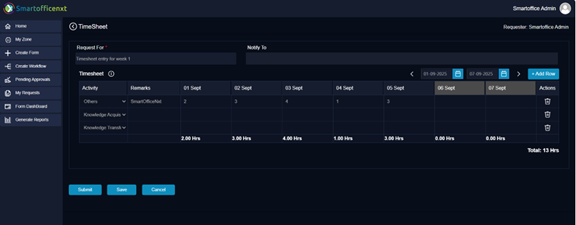
Timesheet Filling Usage
7.2 Timesheet Reports
Description: Each form has its own Timesheet Report accessible from the Form Dashboard, providing insights into user-level efforts and time spent per request.
Usage:
- Go to the Form Dashboard and select a form.
- Open the Timesheet Report tab specific to that form.
- View time logs submitted by all users for that form.
- Download the report if export options are enabled.
Tips & Notes:
- This report is not available under the general Generate Reports section.
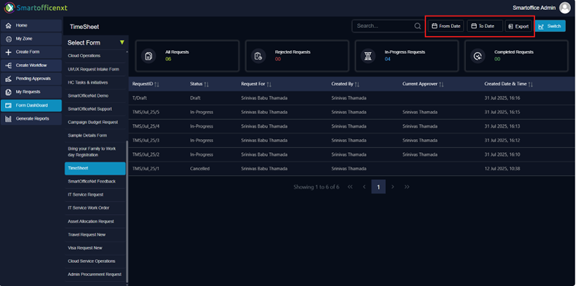
Timesheet - Data export available in the Timesheet Dashboard.
7.3 Task Performer Role
Description: The Task Performer role is designed to support and track offline activities performed by a designated individual as part of the request workflow. This role is typically involved both at the beginning (for initial verification) and at the end (to record actual execution).
Usage:
- The Task Performer receives the request at a designated workflow stage for initial verification.
- After approval is completed by all assigned roles, the request returns to the Task Performer.
- The Task Performer updates the request with details of the offline work performed.
- The Task Performer can update the final cost incurred for completing the request.
- Customized statuses can be defined by the Task Performer to reflect different activity states.
- These dynamic statuses are configurable as part of the workflow setup.
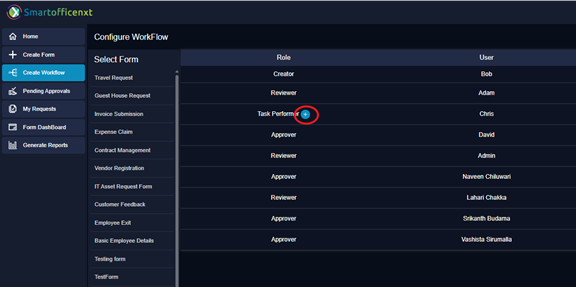
Highlighted represents Dynamic status for Task Performer
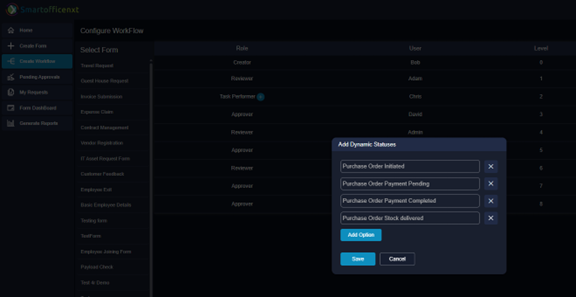
Configure Dynamic Statuses at Task Performer Level.
Tips & Notes:
- The Task Performer can return the request to the Creator for corrections if needed.
- This role is essential for capturing real-world execution and closing the loop in operational workflows.
- Ensure dynamic statuses are predefined during workflow configuration for smooth task updates.
- Cost tracking should be reviewed as part of reporting and audit trails.
7.4 End Workflow at Any Stage (Condition-Based)
Description: This feature allows administrators to configure workflows that end after routing to a specific person or role when certain conditions are met. Instead of continuing through all remaining stages, the workflow is redirected, completed with the designated approval, and then ends.
Usage:
- Open the Workflow Designer for the selected form.
- Add or edit a stage in the workflow.
- Define a conditional route (e.g., “If Amount < $500, route to Manager for approval”).
- Toggle the “Should Flow End Here” option for that stage.
- Save the workflow configuration.
- When the condition is met, the workflow routes to the assigned approver, and once approved, the workflow ends automatically.
Tips & Notes:
- Ideal for fast-tracking approvals for low-risk or low-value requests.
- Reduces unnecessary workflow steps while still ensuring accountability.
- It can be combined with SLA and notification settings for better governance.
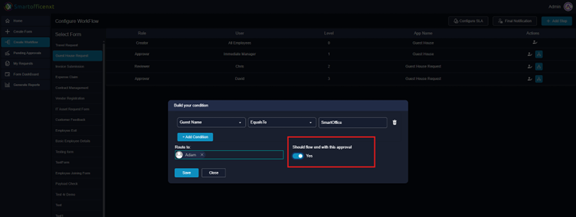
End Workflow at any stage (Condition-based)